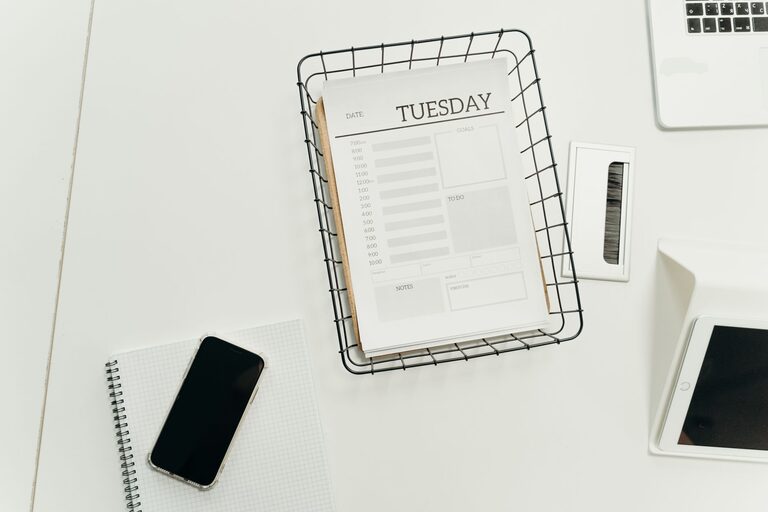
Digital clutter can build up quietly. Unused apps, crowded inboxes, duplicate photos, old downloads, and forgotten accounts may not take up physical space, but they can still make everyday tasks harder. A cluttered digital life can slow you down, make information difficult to find, and create unnecessary distractions.
The good news is that digital decluttering does not require a complete technology overhaul. With a few practical habits and regular maintenance, you can create a cleaner, calmer, and more organized digital environment.
Start With a Simple Digital Audit
Before deleting anything, take a broad look at your digital life. List the main areas that need attention, such as:
– Computer files and folders
– Email accounts
– Smartphone apps
– Photos and videos
– Cloud storage
– Online accounts
– Browser bookmarks
– Notifications
– Social media feeds
Choose one or two areas to begin with. Trying to organize everything in one session can feel overwhelming and may make it harder to maintain your progress. A focused approach allows you to see results quickly.
As you review each area, ask yourself:
– Do I use this regularly?
– Can I find what I need quickly?
– Does this item still serve a purpose?
– Would I miss it if it were gone?
– Is there a simpler way to store or manage it?
These questions can help you make clear decisions instead of keeping items simply because they are familiar.
Organize Your Files and Folders
A clear file system makes documents easier to find and reduces the need to search through random folders. Start by reviewing your desktop, downloads folder, and documents folder. These locations often collect files that were saved quickly and never sorted.
Create a small number of broad folders based on how you work. For example:
– Personal
– Work
– Projects
– Home
– Photos
– Records
– Archive
Within those folders, add subfolders only when they are genuinely useful. Too many layers can make the system harder to navigate.
Use Clear File Names
A consistent naming system can save time. Instead of names such as “Document1” or “Final version,” use descriptive names that include the subject and date when appropriate.
Examples include:
– `Travel checklist 2026`
– `Home insurance records`
– `Project notes September 2026`
– `Resume updated`
Use the same format each time. If you use dates, choose one style, such as year-month-day, so files sort in the correct order.
Review the Downloads Folder
The downloads folder is often a temporary holding area, not a permanent storage location. Once a month, review its contents and take one of three actions:
- Move important files to the correct folder.
- Delete files you no longer need.
- Keep temporary files only if you have a clear reason.
Emptying this folder regularly can make your computer feel more organized with very little effort.
Clean Up Your Email
Email clutter can make important messages easy to miss. Begin by unsubscribing from newsletters, promotions, and alerts that you no longer read. If you receive several messages from the same source, look for an unsubscribe link at the bottom of the email.
Next, search for large groups of old messages. You may be able to remove outdated notifications, shipping updates, event reminders, or automated messages. Keep records that you may need, but avoid treating your inbox as a permanent archive for everything.
Create a few useful folders or labels, such as:
– Action needed
– Waiting for reply
– Receipts
– Travel
– Personal
– Reference
Try not to create a separate folder for every topic. A small system is easier to maintain.
You can also use filters to sort recurring messages automatically. For example, receipts can go into a receipts folder, while newsletters can be marked for later reading. Review your filters occasionally to make sure they still match your needs.
Reduce App Clutter
Unused apps take up storage, use background resources, and add visual noise to your devices. Review the apps on your phone, tablet, and computer. Remove apps that you have not used in several months, especially if you can reinstall them later when needed.
Pay close attention to:
– Duplicate apps with similar functions
– Games or trial apps you no longer use
– Shopping apps that encourage unnecessary browsing
– Old work or school apps
– Apps with excessive notifications
Keep essential apps on your main screen and move less frequently used ones into clearly named folders. You can also remove apps from your home screen without deleting them, depending on your device settings.
Organize Photos and Videos
Photos often become one of the largest sources of digital clutter. Start by deleting obvious duplicates, blurry images, screenshots, accidental pictures, and videos you do not want to keep.
Work in short sessions instead of trying to review your entire library at once. For example, organize one month, one event, or one year at a time.
Useful photo organization methods include:
– Albums for trips, events, and projects
– Favorites for your best images
– A separate album for important documents
– Consistent names for exported files
– Regular backups to a trusted location
Before deleting photos, confirm that important images are backed up. A backup should be separate from your main device so that one problem does not remove every copy.
Review Cloud Storage
Cloud storage can become crowded with old files, duplicate folders, and shared documents you no longer need. Review the storage areas connected to your computer, phone, and email services.
Look for:
– Duplicate files
– Old backups
– Large videos
– Shared folders you no longer use
– Previous versions of documents
– Files that belong to completed projects
Keep a clear distinction between active files and archives. Active folders should contain items you use now, while older material can be placed in a labeled archive or removed when it is no longer useful.
Manage Notifications
Notifications are a major source of digital distraction. You do not need an alert for every message, update, or promotion.
Review notification settings on your phone, computer, and web browsers. Turn off alerts that are not important and keep notifications for services that genuinely need your attention.
Consider using:
– Scheduled summaries
– Do not disturb periods
– Silent notifications
– Separate settings for work and personal time
– Email notifications only for priority messages
Fewer interruptions can make it easier to focus, even if you do not change any other part of your digital setup.
Close Unused Online Accounts
Old online accounts can be difficult to track and may continue sending messages long after you stop using them. Search your email for terms such as “welcome,” “verify,” “subscription,” or “account” to identify services you may have forgotten.
For each account, decide whether to:
– Keep it and update the details
– Cancel a subscription
– Download information you want to retain
– Close the account
Use unique passwords for the accounts you keep, and consider using a password manager to store them securely. Keeping a simple record of important accounts can also make future maintenance easier.
Create a Digital Maintenance Routine
Decluttering works best when it becomes a regular habit. Set aside a short amount of time each week or month for digital maintenance.
A monthly routine might include:
– Emptying the downloads folder
– Deleting unnecessary screenshots
– Unsubscribing from unwanted email
– Reviewing unused apps
– Checking cloud storage
– Updating important file folders
– Reviewing notification settings
You can also schedule a larger review twice a year. During this review, check old accounts, backups, photos, and files that are no longer part of your daily routine.
Keep Your System Simple
The best digital organization system is one you can maintain. Avoid creating complicated rules that require too much effort. Use clear folder names, keep only useful apps, and remove items when they no longer serve a purpose.
Digital decluttering is not about making every device perfectly empty. It is about creating a system that helps you find what you need, protect important information, and spend less time managing unnecessary digital content. Start with one small area, make a few thoughtful changes, and build from there.
About the Author